

08 Sep Why Is My Office Printer Not Printing? A Calgary Troubleshooting Guide
Your office printer stops mid-task, and the whole team feels it. Most print failures come down to three things: a weak connection, empty ink or toner, or a stuck software setting. The good news is that you can fix many of these issues in minutes. This guide walks you through the simple checks first, then shows you when a certified technician should step in.
A printer that will not print is one of the most common office headaches. It can slow down invoicing, contracting, and daily reporting. But before you panic or shop for a new machine, know this: the cause is often small and easy to solve. Work through the checks below in order, from quick fixes to more advanced steps.
What Are the Top Reasons an Office Printer Stops Printing?
A printer can fail for many small reasons. Most problems fall into five groups. Knowing these groups can help you find the fix faster and cut out the guesswork.
- Connection issues: The printer is offline, unplugged, or disconnected from the network.
- Low or empty supplies: The printer has no ink, toner, or paper.
- Paper jams: A sheet is stuck inside the rollers or paper path.
- Wrong settings: The wrong printer is set as your default device.
- Software errors: Outdated drivers or frozen print queues can stop printing jobs.
Think of this as a short checklist. When the printer goes quiet, run through the list from top to bottom. Each cause is easy to rule out, and most take only a minute to check. Sorting through these five causes early is the first step in smart office printer repair.
How Do You Check the Connection and Fix Simple Errors Yourself?
- Start with the basics. Many print problems clear up once you rule out the simple issues. Run through these quick steps:
- Check the power. Make sure the printer is on, and the power cable is firmly connected.
- Check the connection. For Wi-Fi, confirm that the printer and computer are on the same network. For USB, unplug and reconnect the cable.
- Confirm the right printer. Your computer may be sending print jobs to the wrong device.
- Set it as your default printer. This helps ensure that files are sent to the correct machine.
- Clear the queue. Cancel any stuck jobs and try printing again.
A quick restart of your Wi-Fi router can also help if the printer keeps dropping off the network. Give it about 30 seconds, then power it back on. Once the connection is stable, send a test page to confirm the fix worked. These simple steps can solve many everyday printers repair issues.
Is Your Ink, Toner, or Paper Supplies the Real Problem?
Sometimes the printer works properly, and the fix is even simpler. Empty or low consumables can stop a print job quickly. A two-minute check can save you an unnecessary service call.
Watch for these signs:
- Faded, streaky, or blank pages can point to low ink or toner.
- A blinking light or error code may indicate an empty cartridge.
- lose, damaged, or overloaded paper trays can cause repeated jams.
Genuine cartridges can provide reliable print quality and help reduce supply-related problems. Store spare cartridges in a cool, dry place, so they are ready when needed. Load paper correctly and keep essential printer supplies on hand so a quick replacement can get you printing again.
How Do You Fix Print Queue and Software Errors?
If the hardware checks out, the problem may be on your computer. Software glitches are common, and many are safe to troubleshoot yourself.
Try these steps in order:
- Restart the printer and computer. This can clear up many minor faults.
- Cancel all jobs in the print queue, then resend a single file.
- Update or reinstall the printer driver from the manufacturer’s official website.
- Restart the print spooler service if print jobs remain stuck.
Drivers act as the bridge between your computer and the printer. When they become outdated or corrupted, print jobs can freeze or fail to start. A fresh driver installation can fix errors that restart alone does not resolve. Keeping drivers and settings up to date helps your printing equipment and supplies work together properly.
When Should You Call a Professional in Calgary?
DIY checks can fix many common issues, but some problems need a trained technician. Contact a qualified professional if you notice any of these signs:
- Grinding, clicking, or other unusual noises.
- Recurring paper jams that return after troubleshooting.
- Poor print quality that new supplies do not solve.
- Error codes that keep returning.
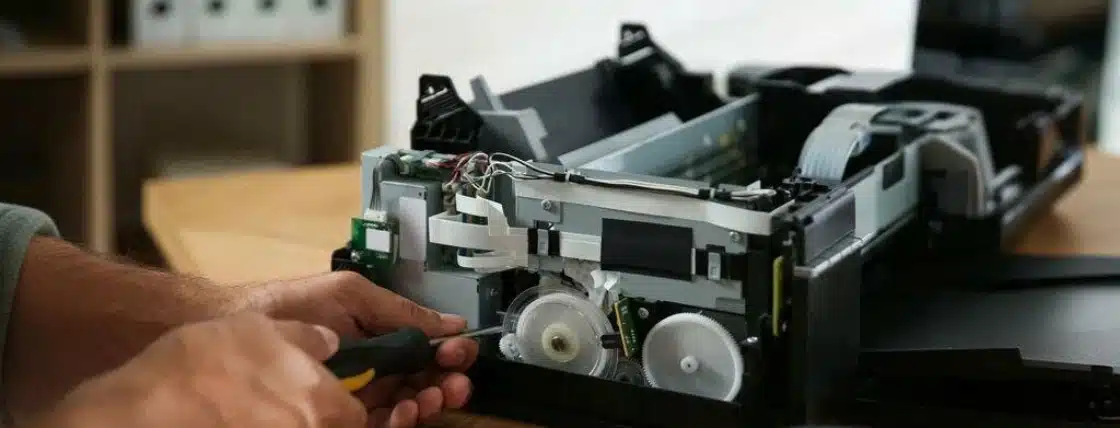
- Signs of a hardware problem inside the machine.
Downtime can cost more than most teams expect. A printer that sits idle can hold up billing, shipping, and client work for hours. A trained technician can identify the root cause instead of only treating the symptoms. Waiting too long can also allow a small fault to become a more costly repair. Fast printer repair in Calgary services can help keep your office running and protect the useful life of your machine.
Get Your Office Printer Fixed Fast Today
You do not need to struggle with printer problems alone. R&S Business Equipment Ltd provides factory-certified technicians for fast, reliable services across Calgary. The team handles setup, repair, and routine care to help your office get back to work with minimal disruption.
Ready for help? Call +14032515304 or email info@randsbus.com to speak with the Calgary team about your printer repair needs.